


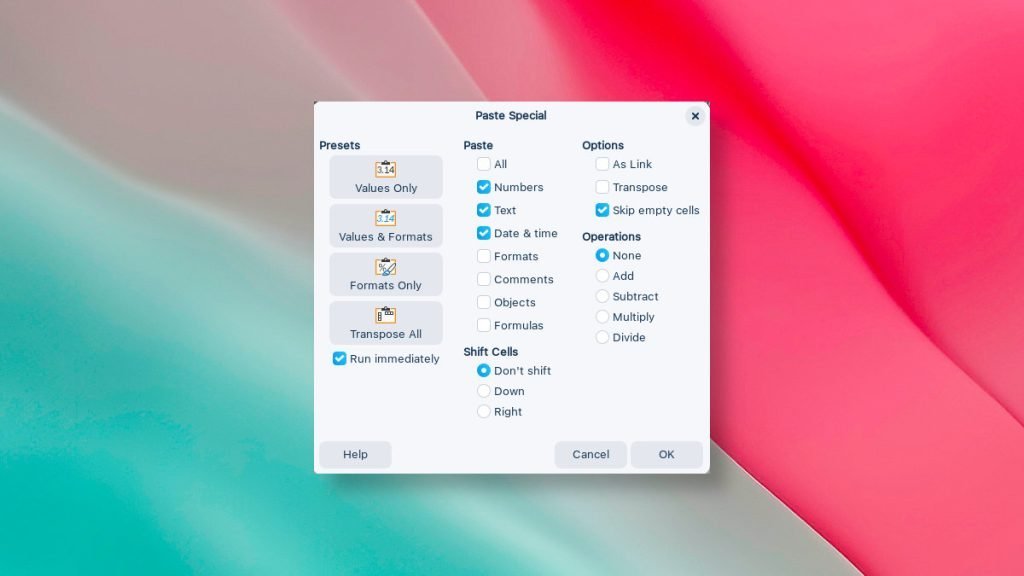
Have you ever encountered difficulties doing copy / paste with non-sequential data having empty rows? You may end up overwriting the existing data. But what if you want only to paste the values having data, keeping the existing cell unchanged?
Fortunately, a simple solution hidden within the Paste Special feature can save you both time and frustration.
Here’s how to do it.

Copy / Paste Skip Blanks in LibreOffice
1. Select the source range: Start by highlighting the range of cells containing the data you want to paste. In our example, let’s say it’s range B1:B12.
2. Copy: Right-click on the selected range and choose “Copy” from the context menu.
3. Choose the target cell: Navigate to the location within your spreadsheet where you want to paste the data. For this example, let’s choose cell A1.
4. Access Paste Special: Right-click on cell A1 and select “Paste Special” from the context menu.
5. Enable Skip Empty Cells: A dialog box will appear with various pasting options. Make sure to tick the box next to “Skip Empty cells”.
6. Paste and relax: Click “OK” and watch as the data is pasted into your spreadsheet, seamlessly skipping over any blank spaces.
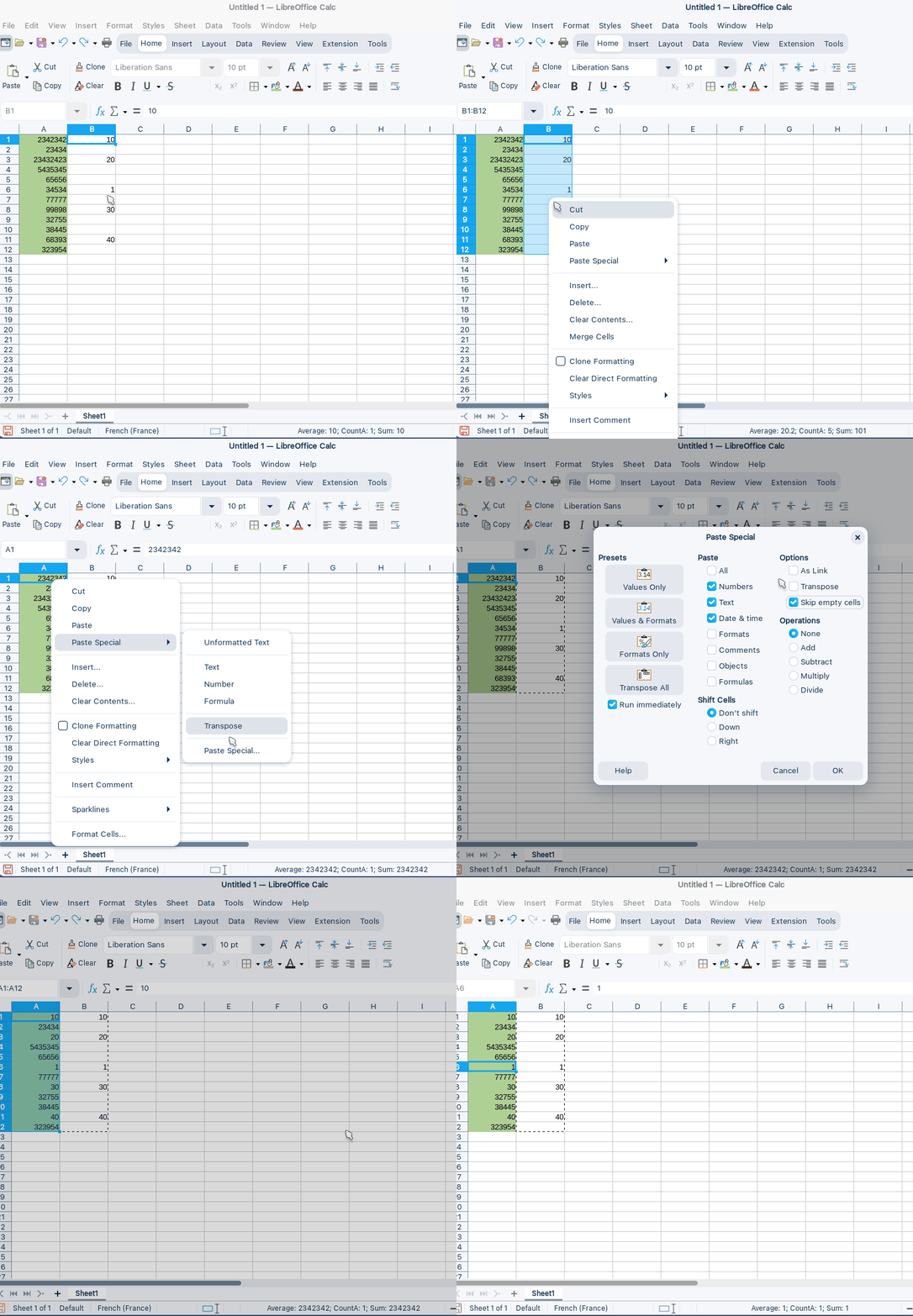

With the “Skip Empty Cells” option, you can now confidently paste data without compromising the integrity of your existing data. This simple trick can save you hours of tedious manual editing, allowing you to focus on the task at hand.
Closing notes
Remember, this technique is not only for pasting data within the sheet but also from other spreadsheets. It’s a versatile option that can be applied in various situations to ensure your spreadsheets remain clean, organized, and error-free.