


Here are a few ways by which you can insert line breaks in LibreOffice or OpenOffice Calc cells.
Have you ever found yourself in a situation where you needed to insert a line break within a cell in LibreOffice or OpenOffice Calc but didn’t know how to do it? Here’s how you can do it.
Before diving into inserting a line break within a cell, let’s first understand what it means. A line break within a cell means inserting a new line of text within the same cell. This is useful when you have a lot of text to enter into a cell and want to keep it organized or for formatting purposes.
Here’s an example of before & after entering a line break in a cell.

Table of Contents
Method 1: Using the Ctrl + Enter key
One of the easiest ways to insert a line break within a cell is using the Ctrl + Enter key.
- Double-click on the cell.
- Put the cursor where you want a line break in the cell.
- Hit Ctrl + Enter key. For macOS, use
cmd + Enter. - This will insert a hard-line break. The ASCII code is 10 for this line feed.
Method 2: Using a formula
If you want to insert a line break within a cell based on certain conditions, you can use a formula.
The trick is to use the ASCII code of 10 inside the formula.
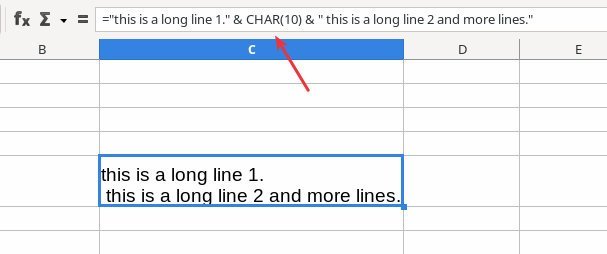
In the above example, if you want use a formula to add a line break use the function CHAR() with ASCII code 10.
Char(number): The number is from 0 to 255 for character codes
="this is a long line 1." & CHAR(10) & " this is a long line 2 and more lines."
Few usage notes
- Usually, the new line includes two items – carriage return (CR) and line feed (LF).
- The ASCII for LF is 10
- The ASCII for CR is 13
- You can also combine them, such as CHAR(13) & CHAR(10), to come up with the desired result.
- It retains the new line if you copy the cell with the line break to the Writer or any document processor.
- All the above methods work in OpenOffice as well.
Conclusion
In conclusion, inserting a line break within a cell in LibreOffice and OpenOffice Calc is a simple and useful technique for formatting your cell data. It is specially requires when you need for format a cell which contains a significant amount of information.
I hope this guide helps you to do it with the most easiest way. Do let me know in the comment box below if you are able to add line breaks using the above steps.